Using the Home Menu
Use the Home menu to view or set up the basic filters that manage your "home" view in FMS Explorer. Data can be filtered by the service that retrieves the data, and by the selected Point in Time from which the data in the system will be viewed.
|
Home Menu |
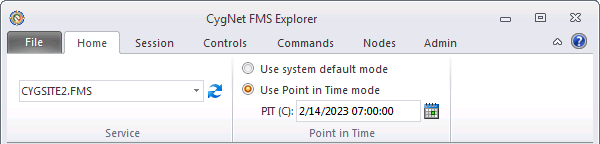
Setting up the Home View
Data can be filtered to define the "home" view by setting the following parameters.
| Parameter | Description |
|---|---|
| Service | |
|
[Site.Service] |
Select the Site.Service from which to retrieve data, from the drop-down list of available services in your system. |
|
|
Click to refresh the available Site.Service list. |
| Point in Time | |
|
Use system default mode |
Select Use system default mode to view data in your system from the perspective of a system-defined default. If selected, the system will use the end date of the CygNet Measurement system's time window (essentially indefinite), in Contract time (C), as the point from which to view Node properties and data in your system. See Using the Session Menu for more information. |
|
Use Point in Time mode |
Select Use Point in Time mode to view data in your system from the perspective of a user-defined Point in Time (PIT). If selected, enter a specific point in time, in Contract time (C), to define the point from which to view Node properties and data in your system. See PIT(C), below. |
|
If Use Point in Time mode is selected, do one of the following to define the specific date/time from which you want to view data.
Default value is T, date and time today. See Selecting a Point in Time following this table for more information about date/time selection. |
|
 to access the Select Point in Time dialog box, then enter the date/time, in Contract time (C).
 Selecting a Service
You can filter data by any site and service combination available to you. Click the refresh icon  to refresh the available services list. Click the drop-down arrow to access the Site.Service list and then click to select the Site.Service for which you want to view data. The service name will then appear in the Service box, and you can verify the active Site.Service at any time by looking on the Home menu.

Selecting a Point in Time
You can choose to view your measurement system from the perspective of a specific point in time (user-defined as PIT) rather than using the system default (system-defined as the end of the system's time window, or essentially indefinite). Either choice is defined in Contract time (C).
To select a Point in Time, either type the date/time in the format MM/DD/YYYY hh:mm:ss (24-hour clock), or click on the calendar icon in the Point in Time section to access the Select Point in Time dialog box.
|
Select Point in Time |
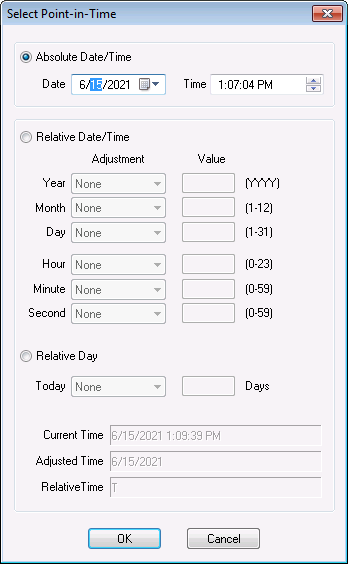
Point in Time can be configured as Absolute Date/Time, Relative Date/Time, or Relative Day.
Note: If either Relative Date/Time or Relative Day is used, the Current Time, Adjusted Time, and Relative Time will be displayed at the bottom of the dialog box, as configured by your selections.
Absolute Date/Time
The point-in time chooser supports configuring an Absolute Date/Time by defining the Date and Time.
|
Absolute Date/Time |
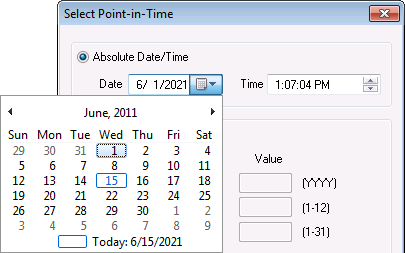
Date is defined by clicking to select the portion of the date you want to change and typing the new value directly into the text box, in the format MM/DD/YYYY, or by using the drop-down calendar date selector.
Time is defined by clicking to select the portion of the default time you want to change, then either typing the value into the text box in the format hh:mm:ss plus AM/PM, or using the up/down arrows to navigate to the desired value.
Relative Date/Time
The point-in time chooser supports configuring a Relative Date/Time offset from the current date/time, for Year, Month, Day, Hour, Minute, and/or Second.
|
Relative Date/Time |
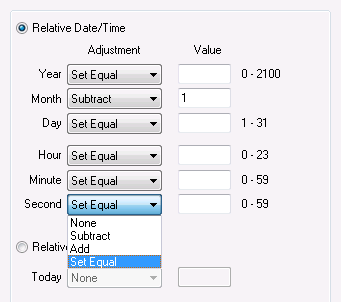
Adjustment operators and acceptable Value ranges for the Set Equal option are as follows for each parameter.
Note: The Value field is disabled if None is selected as the adjustment operator.
| Parameter | Adjustment Operator | "Set Equal" Value Range |
|---|---|---|
|
Year |
|
0 - 2100 |
|
Month |
|
1 - 12 |
|
Day |
|
1 - 31 |
|
Hour |
|
0 - 23 |
|
Minute |
|
0 - 59 |
|
Second |
|
0 - 59 |
Relative Day
The point-in time chooser supports configuring a Relative Day offset from the current date (Today, also represented as T), for a selected number of Days.
|
Relative Day |
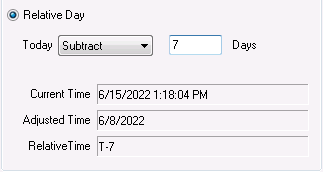
Options for Adjustment operators include None, Subtract, or Add.
Select Subtract or Add to enable the Value field, and then type the number of Days into the value text box.
Example
The result will appear as T-7 to represent a data view from "seven (7) days earlier than or before (-) today (T)."

